
FLAGMAN Casino App Access on iPhone and Android APK Installation
The FLAGMAN Casino app options in Poland include an Android 7.0+ APK that requires permission to install from its source, WebView 7.32 on iPhone and browser access without installation. On the Galaxy S26+, the Android app reached the lobby quickly in successful runs, with one cold-start network error. After refresh, the APK and desktop Chrome showed the same balance and game entry for one account with Multi-Session Access enabled. Mobile access scores 6.9/10.
By Rafał Nowakowski · Published

| Feature | Details |
|---|---|
| Android | APK 1.1, tested on Samsung Galaxy S26+ with Android 16 and One UI 8.5 |
| iPhone | WebView 7.32, tested on Apple iPhone 17 with iOS 26 |
| Mobile browser | Edge 142.0.3595.66 on Galaxy S26+ and Safari 26.0 on iPhone 17 |
| Download and access | Download or QR for the Android package. The separate iOS button uses OneLink |
| Minimum OS | Android 7.0 (API 24) for the APK |
| Android version and build | Version 1.1, version code 1. Target and compile API 35 |
| File and storage | 14.21 MB download. The installed app occupied 33.8 MiB on the Galaxy S26+ |
| Updates | Android uses the same download channel. Safari updates with iOS |
| Permissions | Android requests camera access when you choose to take a verification photo. In the test, an alert appeared in the system tray with Android notifications allowed and Transaction Notifications enabled |
| Account access | Email and password, with Google Authenticator available for two-factor authentication |
| Mobile features | Lobby, account and history, subject to session and account access |
| Account sync | The Android APK and desktop Chrome showed the same 16.25 PLN balance and game record after both sessions were refreshed, using one account with Multi-Session Access enabled |
| Compatibility | Android installation is authorised per source. Individual games can have device, region or session restrictions |
Pros
- The Android route offers both a Download button and a QR code.
- Edge on Android and Safari on iPhone provide separate browser routes without an APK.
- The APK and desktop Chrome matched on balance and a game history entry after refresh with the same account and Multi-Session Access enabled.
- With Android notifications disabled, the test account could still open the lobby and check account history.
Cons
- Android adds an installation permission for the browser or other source used to open the APK.
- A network error stopped one cold launch. The separate recovery test needed a manual refresh.
- The installed app and its local data take up more storage than the download itself.
- Replacing the APK requires a matching package and signer, plus a higher version code.
Games at FLAGMAN Casino














Which FLAGMAN Casino App Option Fits Your Phone?
If you’re choosing between the FLAGMAN Casino APK and iPhone access, use the APK on a compatible Android phone when you want an installed app. On iPhone, open the lobby inside WebView or choose a Safari tab.
| Route | Requirements or tested setup | How it opens | What to watch for |
|---|---|---|---|
| Android APK | Android 7.0 or later | Download or scan the QR code, then install and open Flagman | Allow installation from the source used to open the file if Android prompts you |
| iPhone WebView | WebView 7.32 on iPhone 17 with iOS 26 | Opens the lobby in a web container. The separate operator iOS button routes through OneLink | For other iOS releases, check the system requirements of your chosen WebView client or browser |
| Mobile browser | Edge on Android or Safari on iPhone in the tested setups | Open the operator page in a browser tab | Access to the lobby and individual games depends on session and game eligibility |
The operator’s terms set age and territorial conditions. Its published licence is issued in Curaçao, and local gambling rules apply separately in Poland. For the wider platform and account conditions, see the FLAGMAN Casino guide.
Android APK Setup and Compatibility
Install the FLAGMAN Casino app from the operator’s Download or QR route on a phone running Android 7.0 or later. If Android asks for permission, enable it for the source that opened the file. The package declaration gives the installation floor. The Galaxy S26+ results show how the app behaved on one working configuration.
FLAGMAN Casino Download and Installation Steps
Start the FLAGMAN Casino download from the operator’s Mobile Application page. The Android entry is also listed in the operator footer, and the lobby has a Download item.
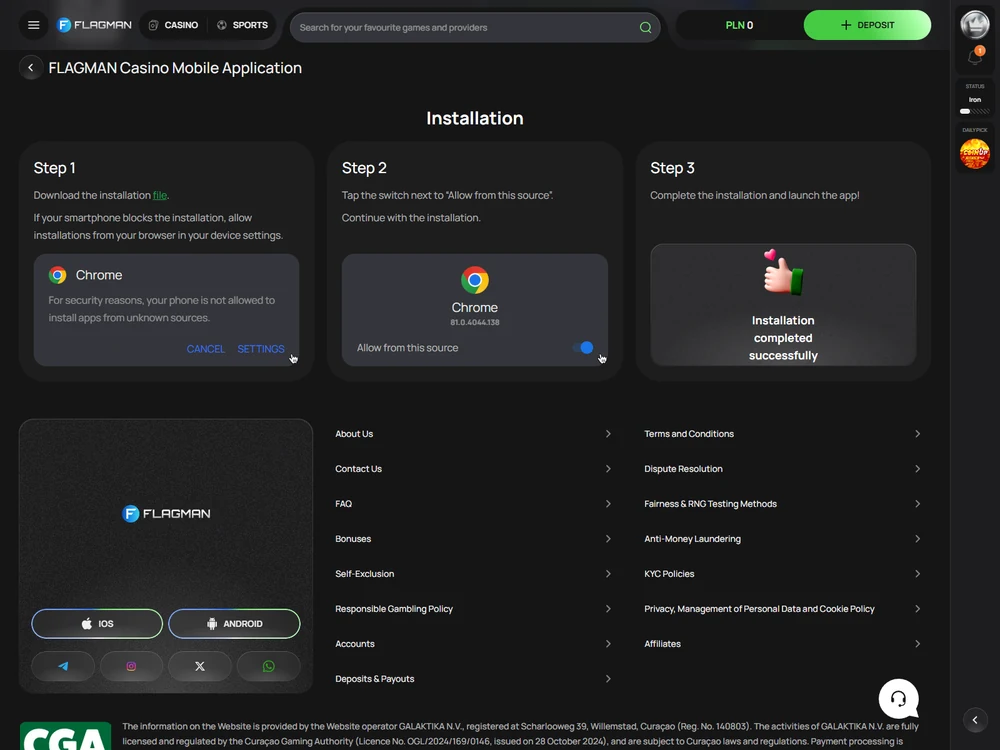
- Open Mobile Application and select Download, or scan the QR code shown on that page.
- Save the APK and open the file from the browser or app that handled the download.
- If Android asks you to authorise installation from that source, open the settings prompt. Select Allow from this source and return to the installer.
- Complete the installation and open Flagman from its icon.
The illustrated walkthrough uses Chrome 81.0.4044.138 and ends with an installation success message. The installed package itself declares the Android requirement in its manifest. Check the Android version on your phone if the installer stops before the app opens.
Package Size and Android Requirements
The installer is 14,212,026 bytes, or 14.21 MB (about 13.55 MiB). Allow some additional storage for the installed app and the local data it creates as you browse the lobby and open provider content.
The package is labelled Flagman, with ID com.casinofg.flagman, version name 1.1 and version code 1. Its minimum is Android 7.0 (API 24). Target and compile API 35 describe how the package was built. The build contains arm64-v8a, armeabi-v7a, x86 and x86_64 libraries, and its manifest sets no separate maximum Android SDK. I used it on a Galaxy S26+ running Android 16 with One UI 8.5.
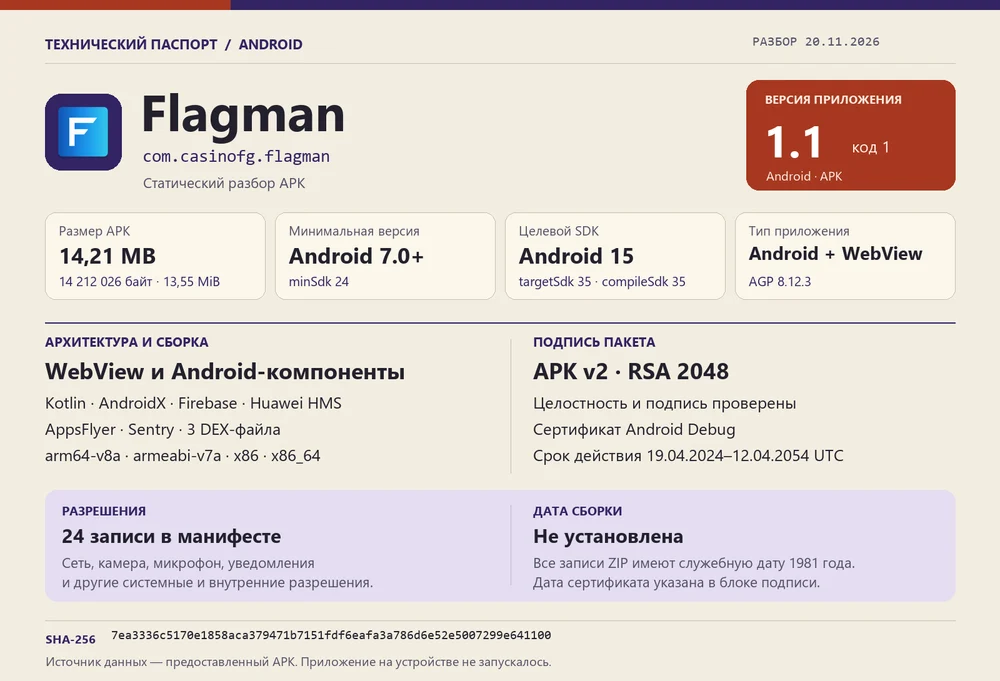
The package contains Android WebView classes, including WebViewClient and WebSettings, with support in the code for JavaScript and DOM storage. It also declares an HTTPS deep-link handler. The network configuration for APK 1.1 includes exceptions that allow unencrypted connections. A page inside the installed app can depend on a live connection and the state of the operator session.
Signature Checks, Updates and Permissions
Before replacing the Android APK, check the package ID, signer and version code.
- Get the replacement APK from the same Download channel.
- Compare its package ID and signer with the installed copy. Both must match.
- Check that the replacement has a higher version code. For version 1.1, the code to compare against is 1.
- Install the replacement after those checks pass.
The analysed 1.1 installer uses APK Signature Scheme v2 with RSA 2048 and SHA-256. The signed sections passed the integrity check, and the public key matched the certificate. The certificate identifies its subject as Android Debug, with organisation Android and country code US. The issuer and subject match. These checks describe the signed APK that was examined. Apply the same package and signer checks to any replacement file.
Android lists 24 permission declarations for this build, including Internet, Camera, Record Audio and Post Notifications. Actual access depends on Android settings and the feature you use. In Verification, selecting the option to take a photo for an identity check prompts for camera access. The flow also lets you select an existing file if you decline the camera prompt.
I could still open the lobby and account history with notifications disabled. With Android notifications allowed and Transaction Notifications enabled in the account, a successful deposit notification appeared in the system tray. When system notifications were blocked, the entry remained in History and in the account’s notification centre.
iPhone Access Through WebView and OneLink
I used WebView 7.32 on an Apple iPhone 17 running iOS 26 to open the lobby. The operator’s separate iOS button leads through OneLink. In the tested WebView, the lobby opens inside a web container. In Safari it opens in a regular browser tab, with the browser’s own settings and controls.
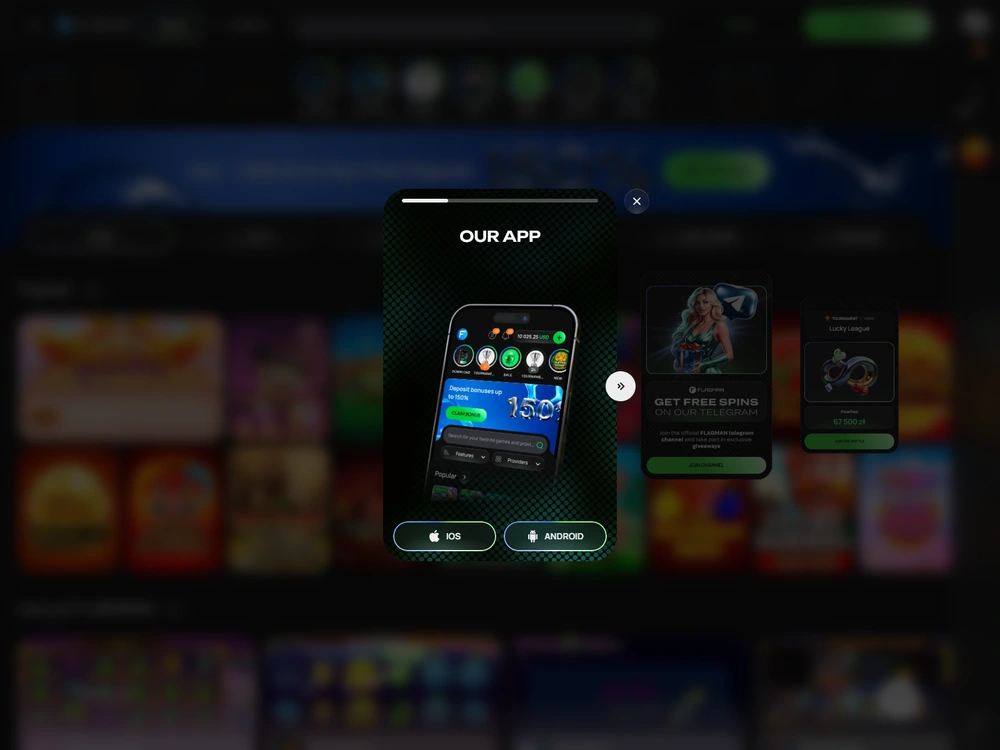
For the WebView, the client’s distribution channel determines how the container is updated. Safari updates with iOS. If the lobby stops loading inside the container, reopen the page or use the separate Safari route when your session allows it. Start in Safari if you want to manage access through the browser.
Mobile Browser Access Without an APK
The mobile site opened in Edge 142.0.3595.66 on the Galaxy S26+ and Safari 26.0 on the iPhone 17. For games that fail to load, the operator’s help guidance recommends using the latest version of Chrome.
On iPhone, you can create a shortcut for the browser page when Safari offers the option.
- Open the page in Safari.
- Tap Share, then select Add to Home Screen if it appears in the menu.
- Open the resulting shortcut to return to the mobile website.
If a page keeps rendering incorrectly, follow the operator’s guidance to clear the browser data and sign in again. Clearing this data can end the browser session, so have your sign-in details ready.
- Clear the browser cache and cookies. In Safari, use the browser’s website data settings.
- Return to the site and sign in again.
What Happened in the Android Tests
The Galaxy S26+ reached the interactive lobby in a median of 4.02 seconds from a cold start and 1.73 seconds from a warm start. I measured from touching the APK icon through to a lobby that accepted input. These tests used a home Wi-Fi connection in Warsaw on 5 GHz, with 78 Mbps download and 19 Mbps upload in the comparison setup.
Cold Launch, Warm Launch and Recovery
Warm launches completed on all five attempts. Cold launches kept the network and saved cache fixed while starting with the process closed. Warm launches kept the app and cache in place. One of the six cold starts stopped with a network error. The cold average uses the five successful runs.
| Launch state | Successful attempts | Median | Mean of successful runs | Range |
|---|---|---|---|---|
| Cold | 5 of 6 | 4.02 s | 4.016 s | 3.46–4.67 s |
| Warm | 5 of 5 | 1.73 s | 1.724 s | 1.37–2.15 s |
In a separate recovery run, the interactive lobby returned 10.20 seconds after Wi-Fi became available again. I refreshed the screen to restore it, and the account’s session history was still there. A payment interrupted by a loss of connection can remain incomplete.
- Refresh the screen once the connection returns.
- Open History and check whether the payment was recorded before trying again.
Storage, Traffic and Game Loading
A 15-minute run with the same lobby and one demo session added 7.4 MiB of local data to the 33.8 MiB occupied immediately after installation. The Galaxy used 21.6 MB of network traffic and three percentage points of battery charge. Screen brightness stayed at 50%, and the Wi-Fi connection used the 5 GHz band.
I measured the same point on the back of the phone before opening the lobby and after leaving the demo. The surface rose from 29.4°C to 32.1°C in a room at 22°C. These figures apply to that session and device. Check the app’s storage entry for space still occupied on the phone. Network traffic measures how much data moved during the run.
The mobile search for Flagman Fruits returned BGaming card 482375, the same result as desktop search. Four selected game cards were visible on the Android route, and three opened on the first try. One connection dropped before the provider lobby was ready. The card opened when I tried again after the connection returned.
Individual game launches have their own finish points. Flagman Fruits took 3.75 seconds from selecting Demo to an active spin button. Blackjack Crown took 5.2 seconds from opening the card to the first stable frame. Both results came from the Galaxy S26+ on APK 1.1 over 5 GHz Wi-Fi.
What Carried Over to Desktop Chrome
The Galaxy APK and desktop Chrome on Windows 11 showed the same balance and game history entry after I refreshed both sessions. I used one account in PLN with Multi-Session Access enabled. Both screens showed a balance of 16.25 PLN. The Flagman Fruits history entry showed a stake of 1.50 PLN and a total payout of 1.20 PLN in each session.
I also compared the display of bonus progress in a separate account state. Both screens showed 5 PLN credited towards a 3,375 PLN wagering requirement, with 3,370 PLN remaining. That comparison concerned what the two sessions displayed. The 16.25 PLN balance came from the separate cash scenario with Skip Bonus selected.
To check your own sessions, open User Sessions in your account. You can identify the active browser or device there and end individual sessions. When I signed out on desktop, the mobile session stayed active. The Polish sign-in flow uses email and password and displays reCAPTCHA. Google Authenticator is available in Security for two-factor authentication. Returning to the same account after signing in again on Android restored the balance from the server.
Mobile Access Rating
Mobile access scores 6.9/10. The three routes, short Galaxy launch times and matching APK and desktop account records give you practical ways to switch devices. Installing an APK from an external source and checking the signer on updates add friction. A connection loss can also make you refresh before the lobby responds again.
| Criterion | Weight | Score |
|---|---|---|
| Platform availability and mobile access | 15% | 8.0/10 |
| Download source and installation safety | 15% | 6.0/10 |
| Stability | 20% | 6.0/10 |
| Performance and load speed | 15% | 7.5/10 |
| Feature parity with desktop and web | 15% | 7.0/10 |
| Usability and navigation | 10% | 7.0/10 |
| Login and account security | 10% | 7.0/10 |
| Overall | 100% | 6.9/10 |
Choose Your Mobile Access Method
Use the Android installation steps for an installed copy on Android 7.0 or later, with permission for the source that opens it. On iPhone, the WebView route opens the lobby inside a container. Choose the Safari route for a regular browser tab or home screen shortcut.
The mobile setup earns 6.9/10. The Galaxy reached the lobby quickly in successful launches, with one network error in the cold series. The APK and desktop Chrome showed the same balance and game entry after I refreshed both sessions with Multi-Session Access enabled for one account. Refresh both sessions before comparing your balance and game history.
Frequently Asked Questions
Does the Android APK require Android 16?
The APK declares Android 7.0 (API 24) as its minimum. Android 16 was the OS on the Galaxy S26+ used for testing. The installation permission for the source also applies if Android prompts you for it.
What does the iOS button do?
The operator’s iOS button routes through OneLink. Separately, I checked the lobby in WebView 7.32 on an iPhone 17 running iOS 26 and opened the mobile site in Safari 26.0 on the same phone.
What does Add to Home Screen do in Safari?
It puts a shortcut to the website on your home screen when Safari offers the option. Open it to return to the mobile web route. Manage website data in the browser’s settings.
Can I decline camera and notification access?
Yes, in the tested Android setup. The camera prompt occurs when you choose to take a verification photo. Use the existing-file option where the verification form provides it. With notifications disabled, the test account could still open the lobby and view entries in History.
What should I check before updating the APK?
Compare the package ID and signer with the installed copy. Both must match, and the replacement must have a higher version code. For Flagman 1.1, the package ID is com.casinofg.flagman and the version code is 1.
Where can I check an interrupted account action?
Open History after the connection returns and you have refreshed the screen. A payment interrupted by a loss of connection can remain incomplete, so check whether it was recorded before trying again. With Multi-Session Access enabled, the APK and desktop Chrome showed the same balance and game entry for one account after refresh.